Enable the Old Input System in Unity 6
Step-by-step instruction
By default, it will exist in the project, but you will not be able to set it up, until you will switch the project settings to use old input system or both.
Open Project Settings
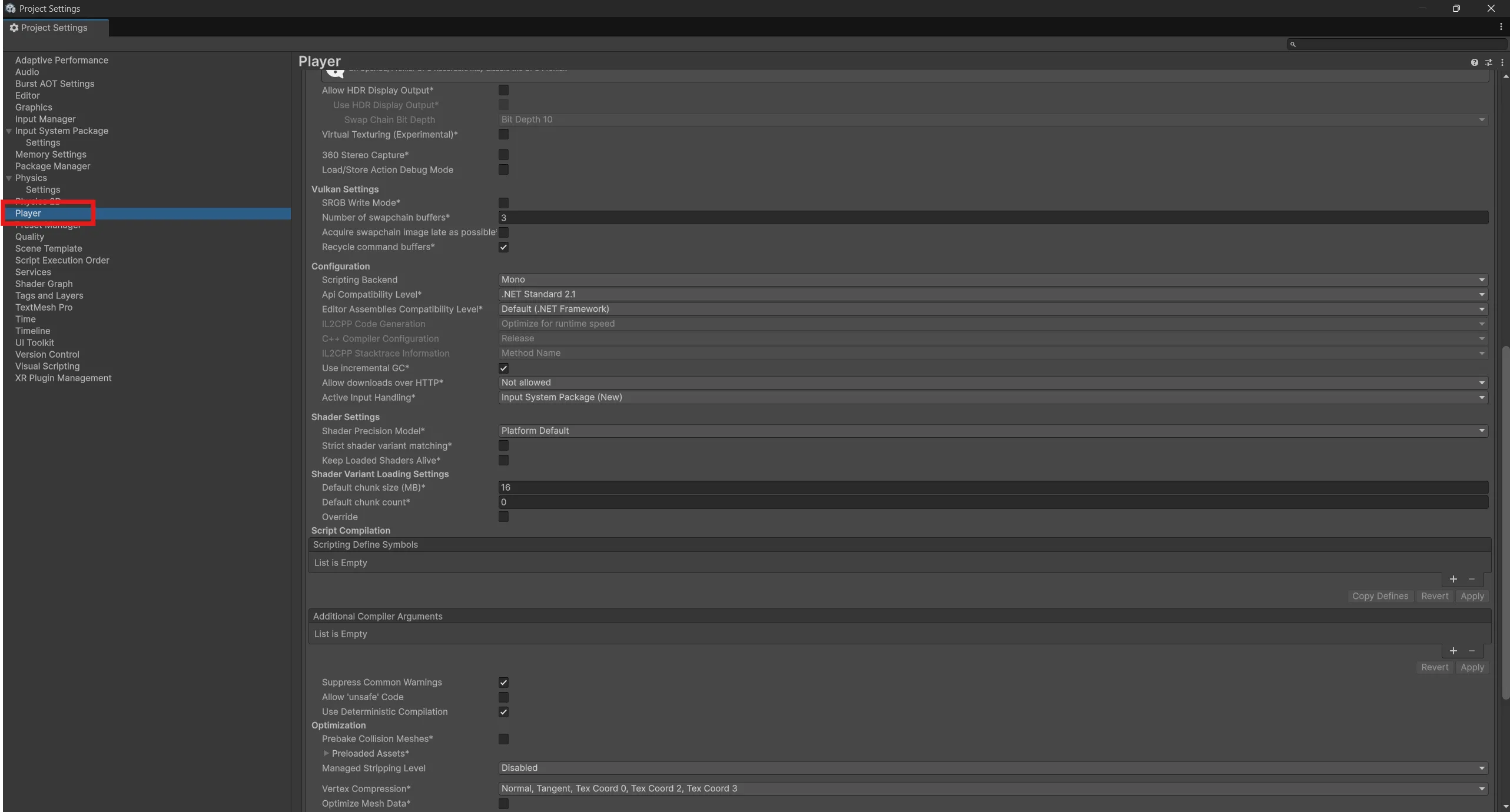
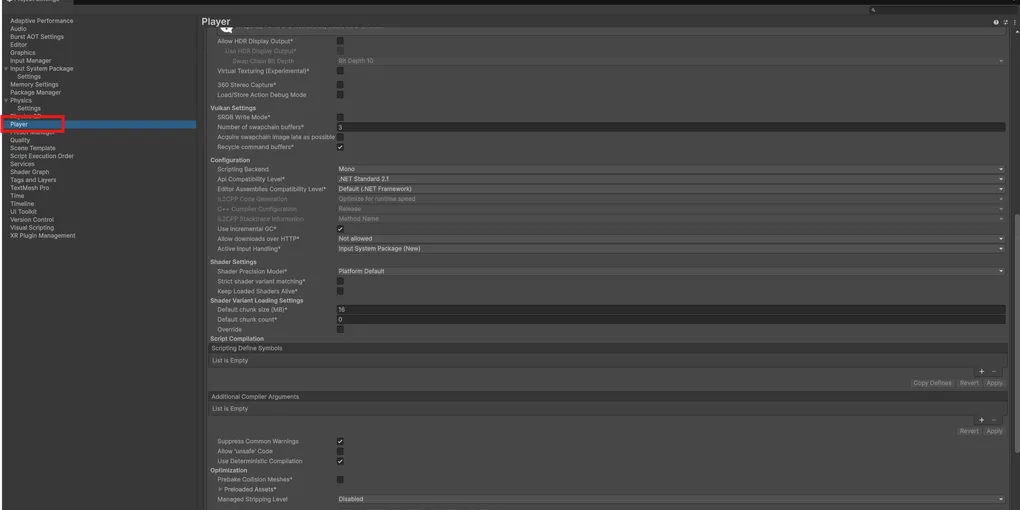
and go to the Player tab
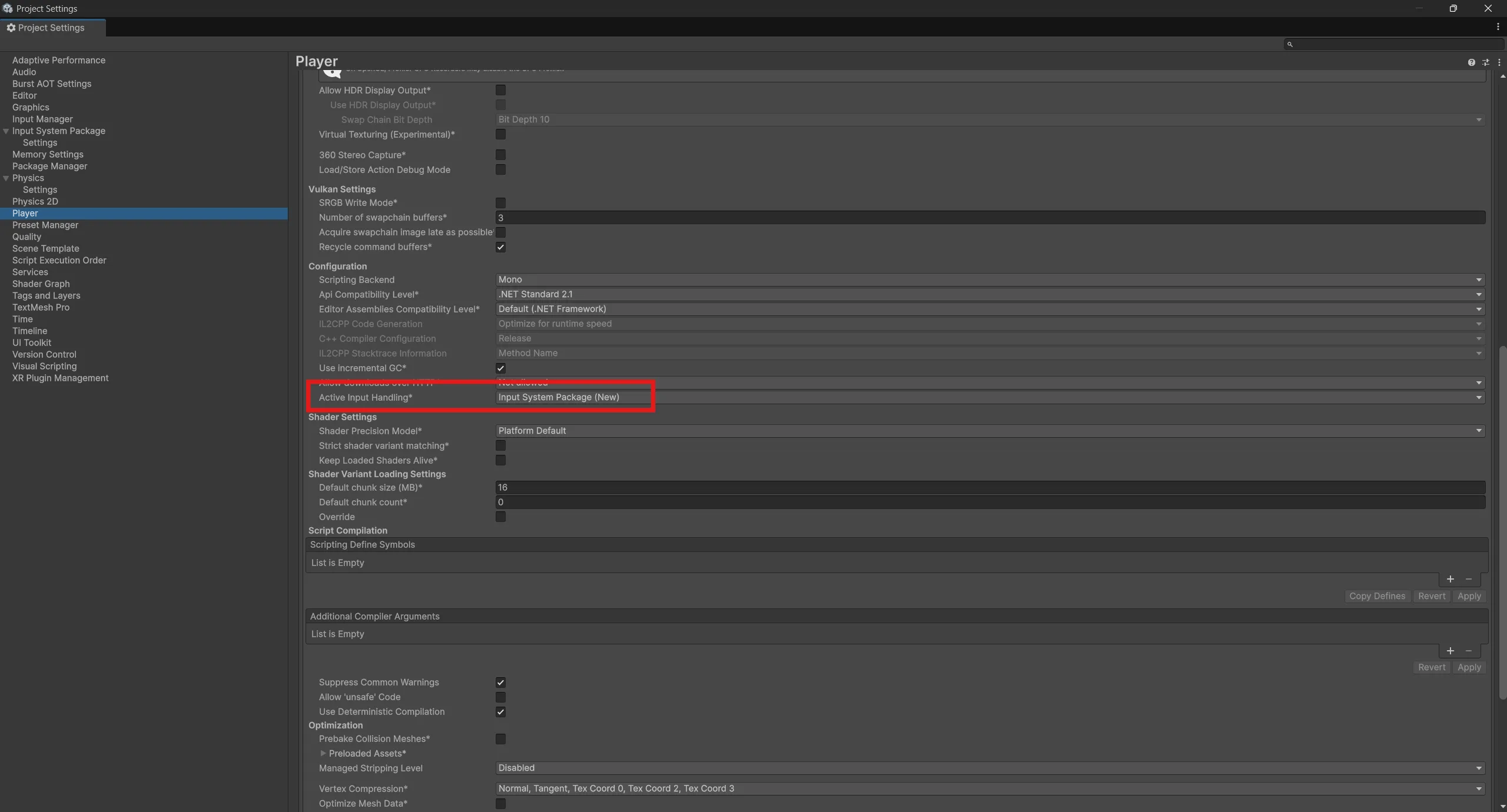
Then, for your target platform, scroll all the way down until you see the Configuration section. Inside this section, find the Active Input Handling dropdown menu

Switch to Input Manager (Old) or Both, depending on which input system you want to use:
Unity will restart automatically, and afterward you’ll be able to use the selected input system or both (if you selected Both option).