Properly create bar (Health Bar, Progress Bar, etc.)
You have 2 main options to create some sort of the bar in Unity:
Option 1
Add default slider to Canvas (first of all UI → Canvas, then inside Canvas, UI → Slider).
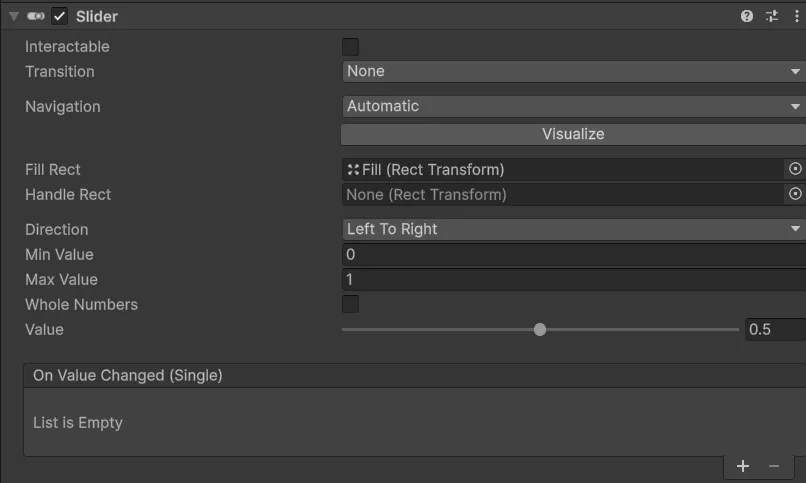
Delete Handle Slide Area, disable Interactable inside Slider component, set Handle Rect to None. You might also change the colors or set actual sprites inside Background and Fill if you have any.
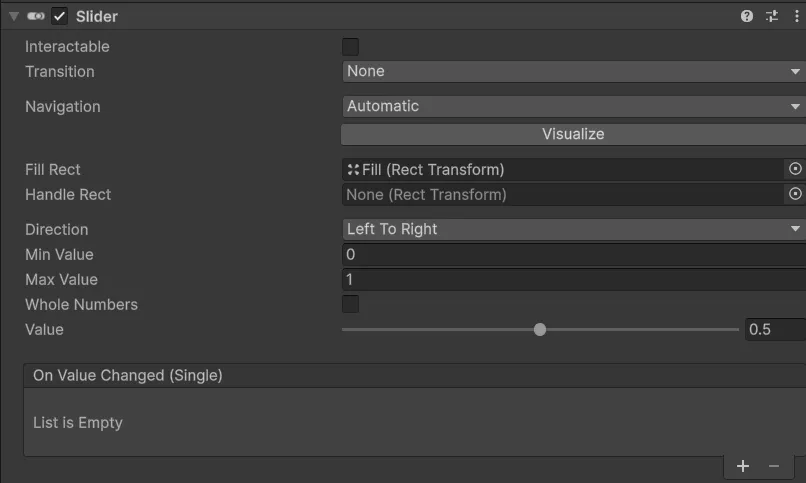
The only remaining problem is that by default, if you set the values to either 0 or 1, you’ll see a tiny bit on the right when it should be empty, and also a tiny bit missing on the right when it should be full. This happens because of the Handle Slide Area which we deleted in the beginning.


You can also fix this problem by, first of all, changing the values of Left and Right of the Fill Area to 0
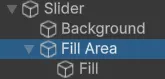
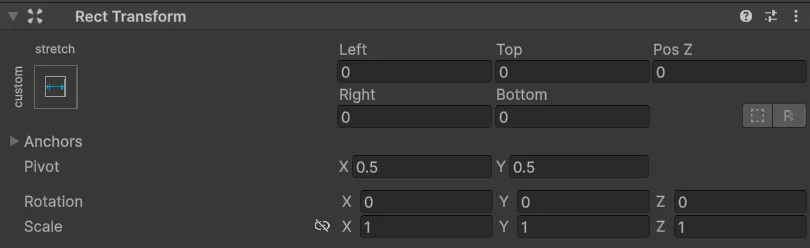
After that, missing bit on the right will disappear.
Second, inside the Fill, do the same exact thing:
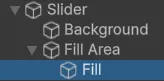
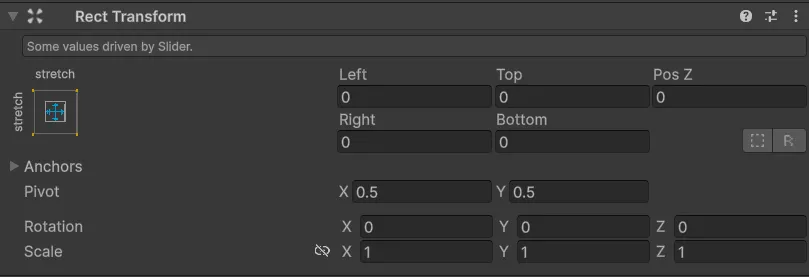
This will prevent tiny bit on the right from appearing when bar should be empty.
Final result:
Empty

Full

Option 2
Second option might be a little bit more flexible if you want to use something besides horizontal/vertical bar.
You will need to create two images with the similar layout as slider:
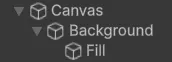
Make sure that at this point, if you going to use custom sprites for bar, that you already imported them.
Then, assign the sprites, change the colors if needed, etc.
And the most important step here is to set Image Type to Filled, and then also set Fill Method accordingly.
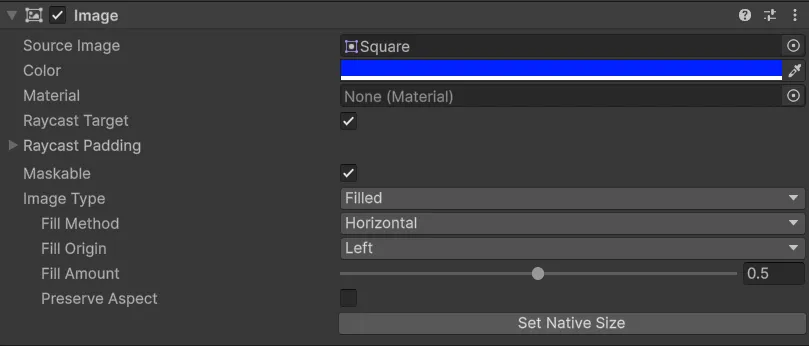
In this example if we want to create horizontal bar, we’re going to set Fill Method as Horizontal.
That’s it.
Then in the code, instead of changing Slider.value, you would need to change Image.fillAmount.
With images you can create something like this: