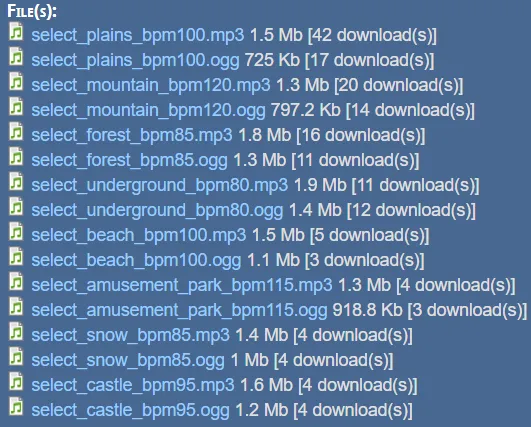
Remove the blank space at the beginning of the MP3 file
Sometimes, for example when you’re trying to loop a background song for a main menu, you may encounter an issue where each time the song repeats, there’s up to a full second of silence (or even more). This happens due to how the .MP3 format handles encoding and playback.
You can get rid of this silence in a few different ways:
- If you’re downloading the audio from the internet, check if the same track is available in
.OGGor.WAVformat instead (because most of the time there will the same file in different format).
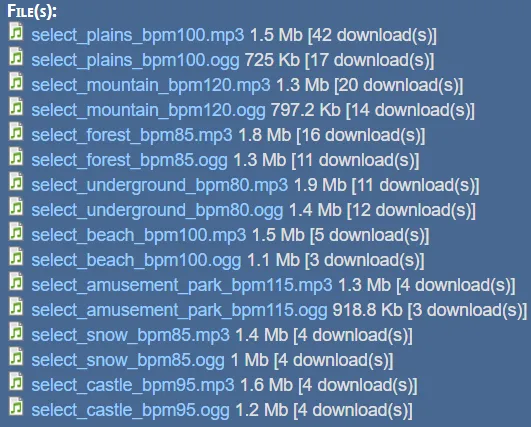
You can also use free tools such as https://www.audacityteam.org/ to cut off and/or convert file.
- To cut it off manually, first of all, just drag and drop your file into Audacity (or click File → Open… to manually select it)
Then click on Selection Tool and select small flat part in the beginning
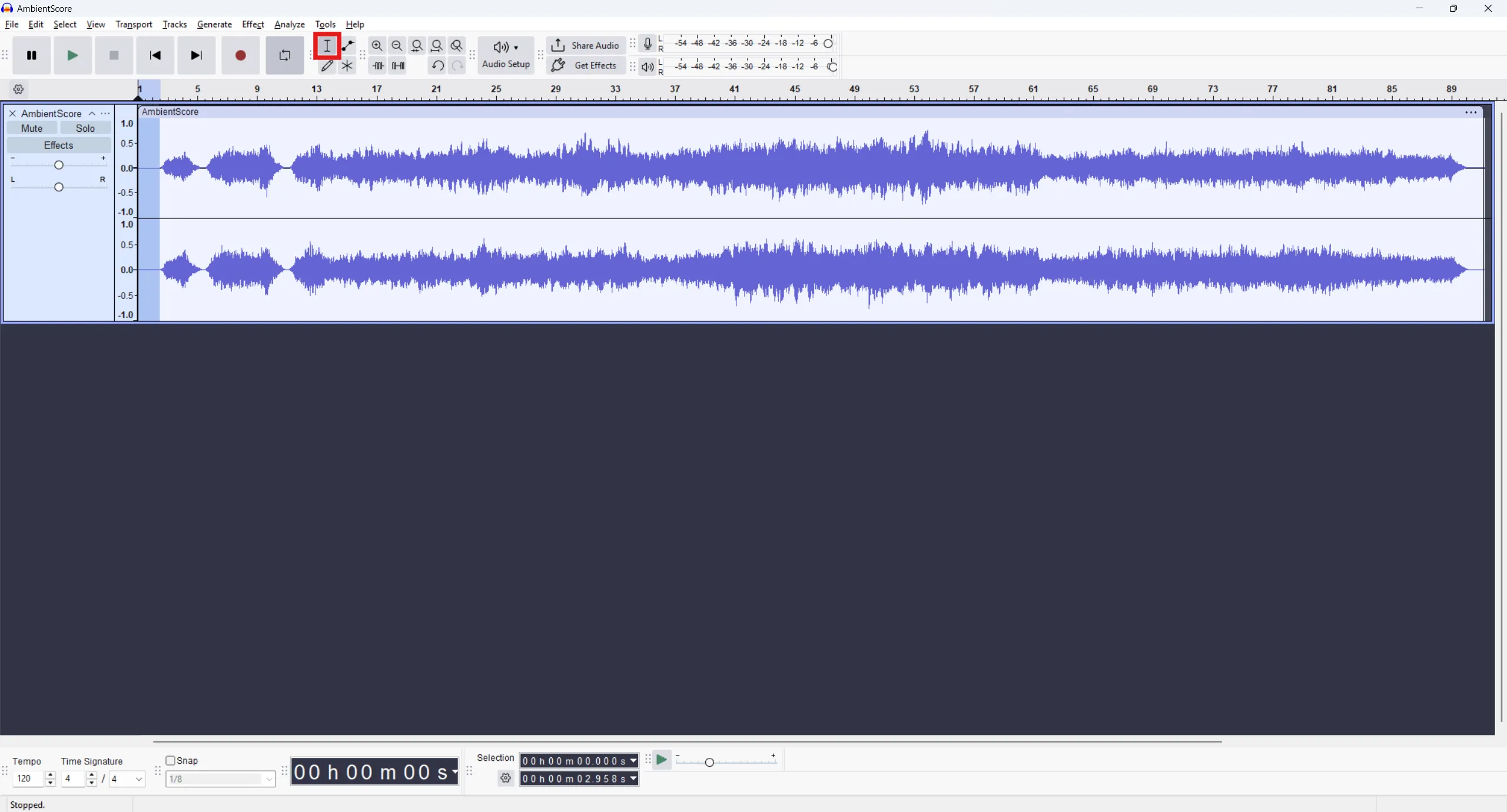
Click on delete key on your keyboard
Silent part will be cut off from your audio clip
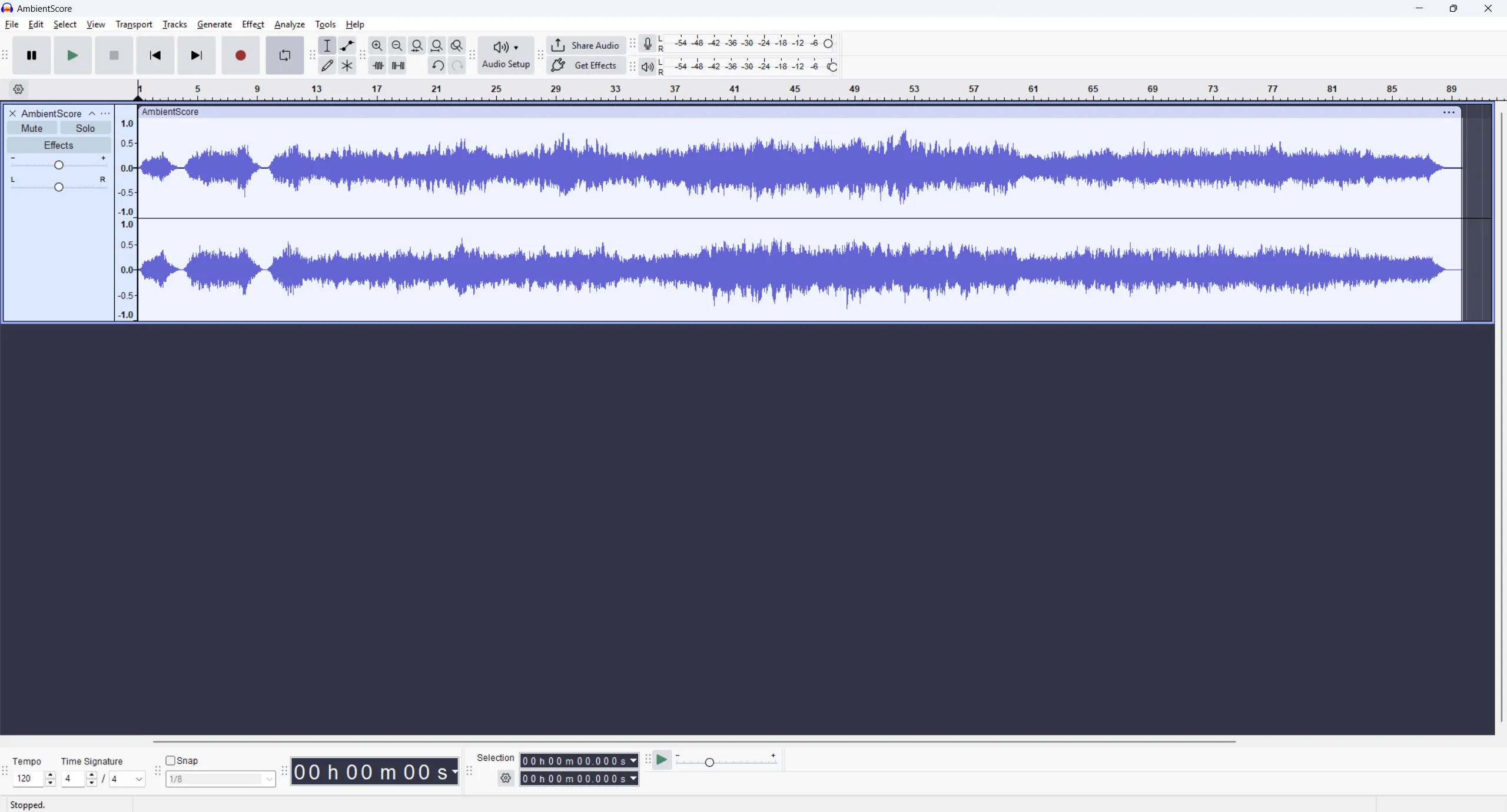
Then you can directly export this audio clip in a different format in the same folder where original file is located
Select File → Export Audio…
Select different format (.ogg or .wav) and choose location where to save new file
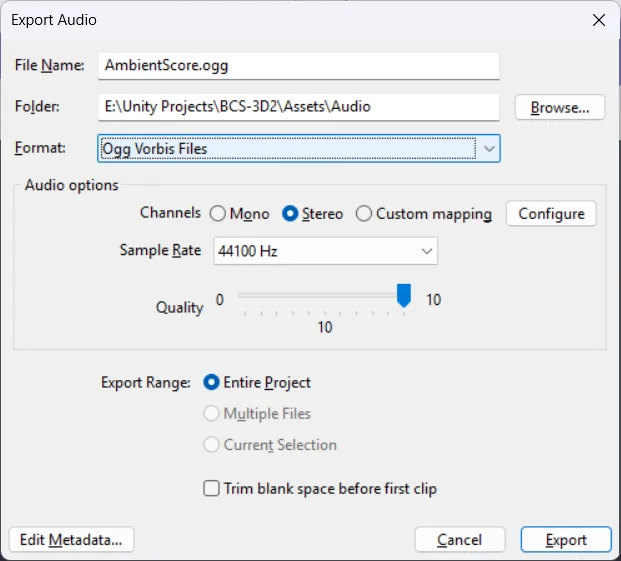
Note: General advice for Unity:
Feature/Format OGG (.ogg) WAV (.wav) Compression Lossy (compressed) Uncompressed File Size Small Large Audio Quality Slightly reduced (usually negligible) Very high (no loss) Load Time Slower (streamed or compressed) Fast (fully decompressed) Memory Usage Lower Higher Best Use Case Music, voice lines, ambient sounds Short sound effects, UI clicks, SFX CPU Impact (Runtime) Slightly higher (due to decompression) Minimal Use
.OGGfor size-heavy audio (music/voices)Use
.WAVfor fast-access SFX that need low latency
- Nowadays, there is also an option to auto Trim blank space before first clip in Audacity, so you can just import it, open Export Audio window and check the checkbox without cutting it off manually
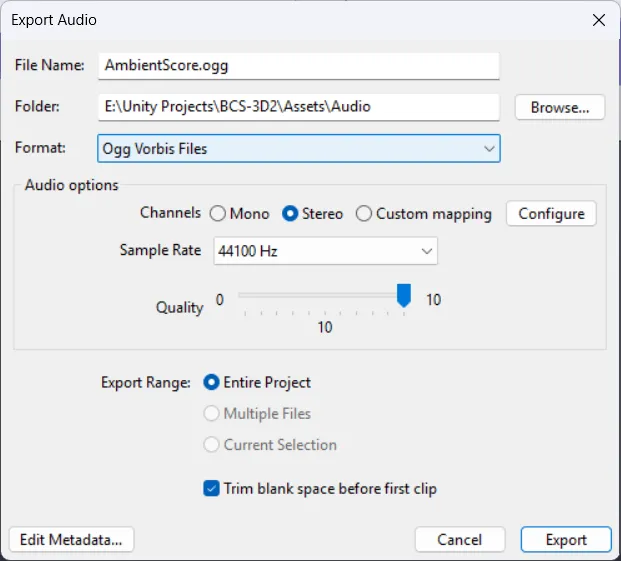
Warning: Sometimes, this might produce worse results than doing it manually!